
Primary Display Property
Every custom object in HubSpot has a primary display property. This is set in the initial creation of the object and can't (easily) be changed. There is also a secondary display property. These 2 properties are displayed larger than the other properties in the object record.
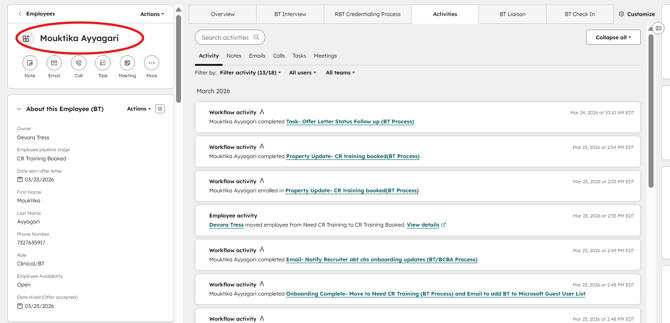
Creating an Object through Form Submission
If you'd like a form to create a custom object on form submission, include that object's primary display property as one of the form fields. This will automatically create a new custom object on form submission. It's that simple!
You can also include additional properties from that object on the form and they will all be populated into the new custom object that is being created.
Example
Client: Flywheel Centers
Custom Object: Employee
Form: New Office Employee Form
Workflow: New Office Employee
We needed a form that managers could fill out when there's a new office employee, where form submission should create both a contact record and an Employee record (custom object) for the new office employee.
Creating the Contact
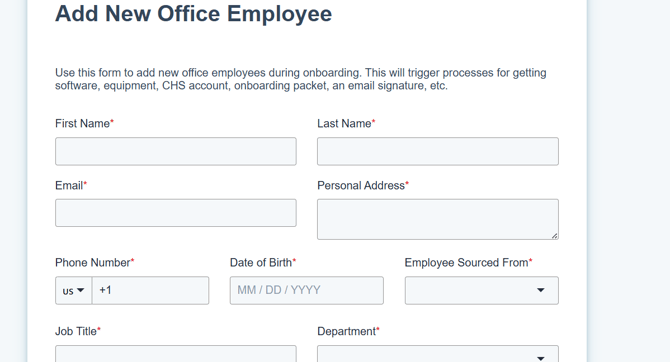
Creating the contact was easy. On the form, we included First Name, Last Name and Email properties from the contact. This is the HubSpot default and creates the contact on submission.
Creating the Employee
For the Employee object, we needed to include the primary display property of Employees, which is Full Name. Since we were already asking for First Name and Last Name on the form (for the contact), it was not a good user experience to then ask for Full Name.
Instead, we made Full Name a hidden field with a temporary value (so that it would submit and create the object) and in a workflow following the submission, copied the First Name and Last Name from the contact to overwrite the temporary Full Name value in the new Employee object.
The remainder of the properties on the form (Personal Address, Phone Number....Job Title, etc) are Employee properties and all populate the new Employee object that's created.